How to solve the problem of the Mikrotik hotspot login page not appearing automatically
How to solve the Mikrotik hotspot login page not appearing automatically - when using a hotspot from Mikrotik when the user accesses the WiFi that we have set up, a page will automatically appear to log in, but sometimes there are some devices where the login page does not appear so that WiFi users have to access it through a browser, it makes it uncomfortable for some people, for that we will discuss How to solve the Mikrotik hotspot login page not appearing automatically.
Fix DNS settings
- Open IP > DNS from Winbox, make sure allow remote requests is checked
- Open IP > DHCP SERVER > Open the NETWORKS tab, select the IP address used in our hotspot by double-clicking it, for example, 10.5.50.0/24.
- Fill in the DNS section with the hotspot gateway, for example, 10.5.50.1.
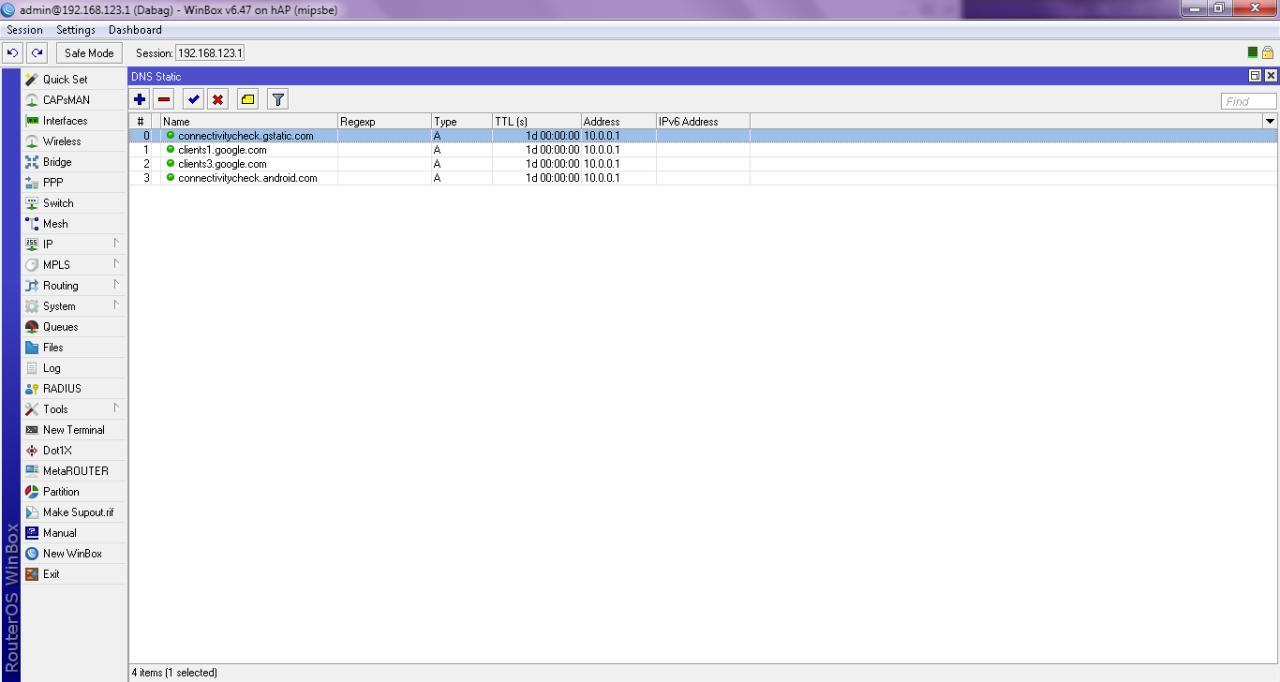
Create a static DNS address. On Android, connection checks are usually directed to the following URL.
- clients1.google.com
- clients3.google.com
- connectivitycheck.android.com
- connectivitycheck.gstatic.com
To do this, we will redirect the domain to an unused/inactive IP address as follows.
Using Terminal
static DNS IP add name=clients1.google.com address=10.0.0.1
ip dns static add name=clients3.google.com address=10.0.0.1
ip dns static add name=connectivitycheck.android.com address=10.0.0.1
ip dns static add name=connectivitycheck.gstatic.com address=10.0.0.1
Using DNS open IP > DNS > Click the static button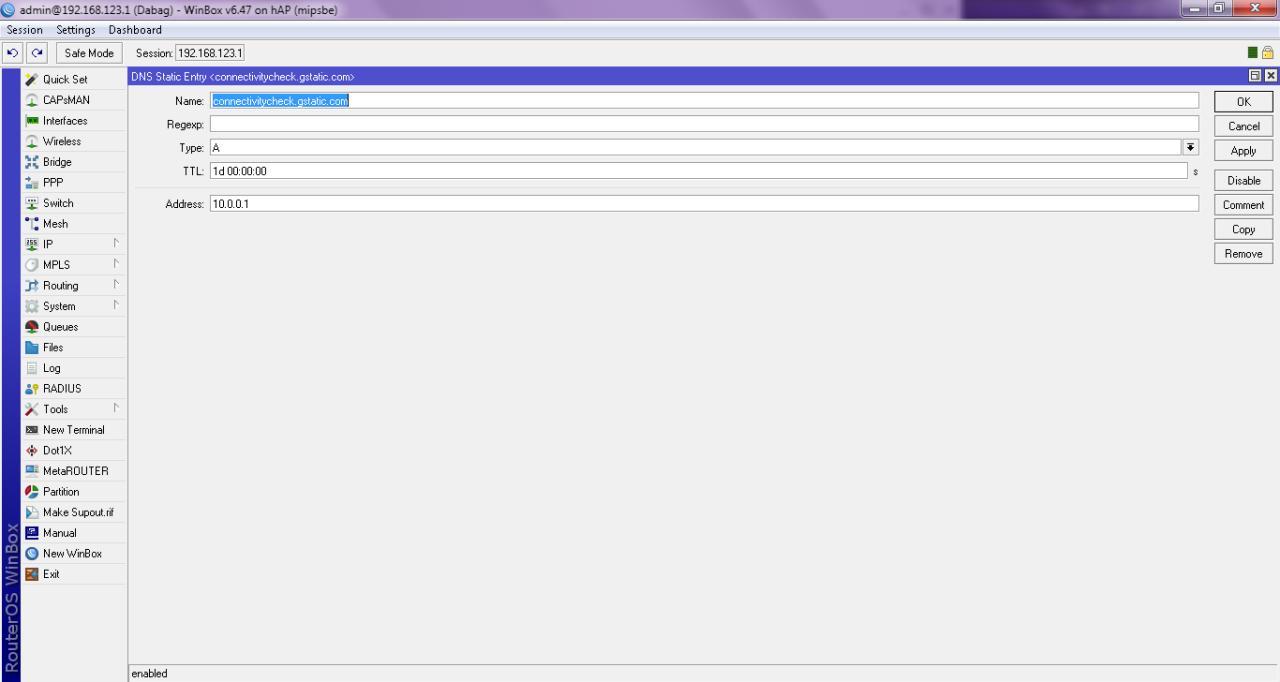
- Click the add (+) button
- Fill in the name with the domain above connectivitycheck.gstatic.com
- Fill in the address with an inactive IP address, for example 10.0.0.1
- Click OK
- Repeat the steps above and enter the 4 domains above
That's how to solve the problem of the Mikrotik hotspot login page not appearing automatically. If it still doesn't work, make sure your internet connection or NAT settings on your Mikrotik router are working. right.